
How to Setup WhatsApp Catalog in EasySocial: Step-by-Step Guide
With this Catalog feature, you can now manage orders directly through WhatsApp, from start to finish. Using WhatsApp's tools, you can handle everything from taking orders and getting addresses to processing payments and keeping customers updated along the way. This smart integration brings together social interaction and online shopping, giving you a convenient way to connect with customers and boost sales. Join us as we make shopping and selling smoother than ever before!
Ensure that you have an active Catalog on your Meta account.
- Go to https://business.facebook.com
- Click on the Business settings of your account which is connected to EasySocial.
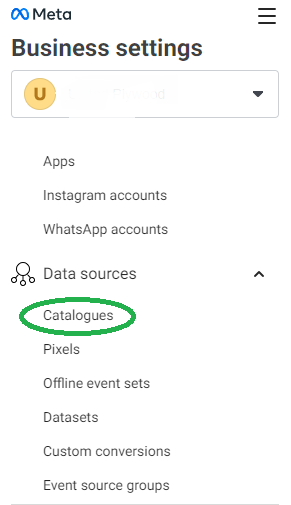
- Scroll down and click on Data Sources then choose Catalogues
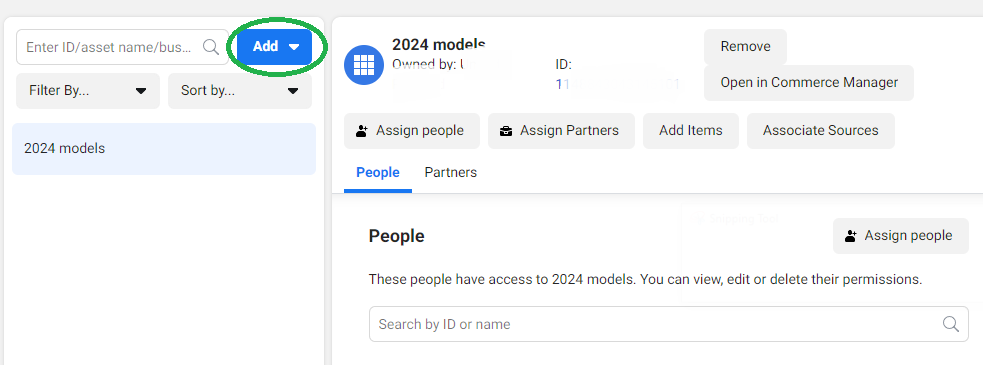
- Click on Add, then choose Create New Catalog in case you do not have an existing catalog.
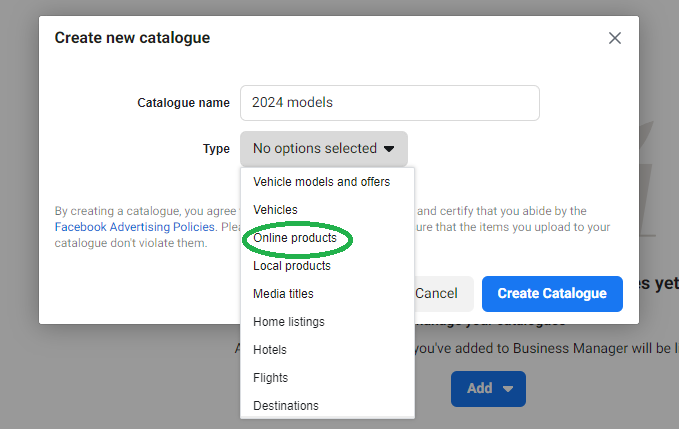
- Give a name to your Catalog
- From the dropdown of catalog type choose Online Products, currently WhatsApp API only supports this category.
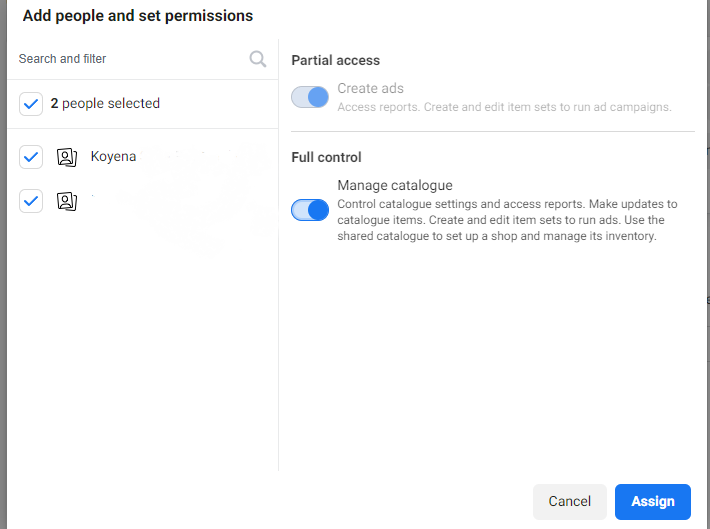
- Now, choose the team members you want to add and give full permission
- Click on Assign
- You can discard any other pop up that appears after this step.
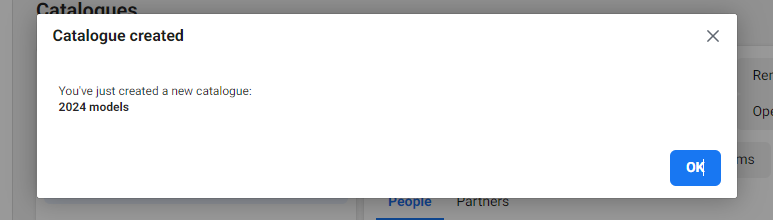
Now your Catalog should be created.
Next, we need to assign EasySocial as a partner to your catalog so that EasySocial will be able to see all the items available in your catalog. This would help us to create and manage orders on your behalf.
- Now click on Assign Partners.
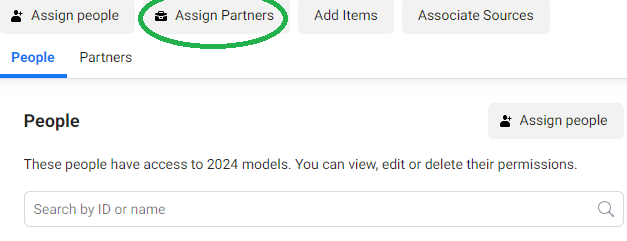
- Click on the Business ID option
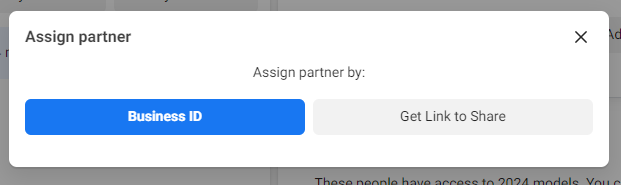
- Enter EasySocial' s Business ID which is 1355783421674765
- Allow full controls as shown below and click on Next
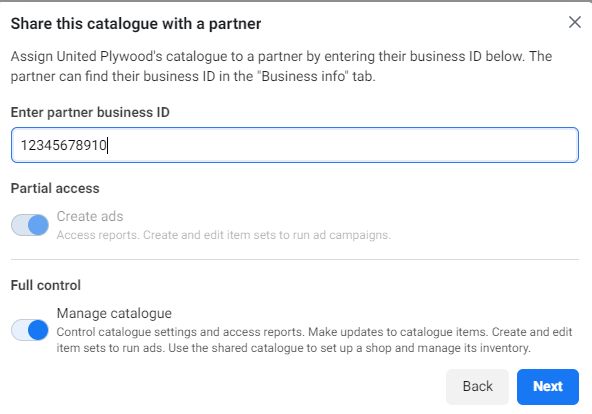
- Your catalog will get added to EasySocial
- Now you can add products/items in this newly created catalog
Once you are done adding items, you need to connect the catalog with your WhatsApp account. In order to do so follow the steps below:
- Go to your WhatsApp Account from the business settings.
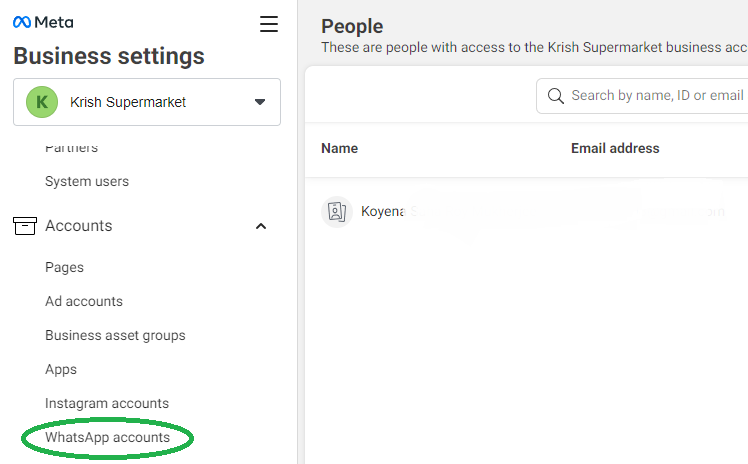
Choose the WhatsApp business account that you wish to link your catalog with.
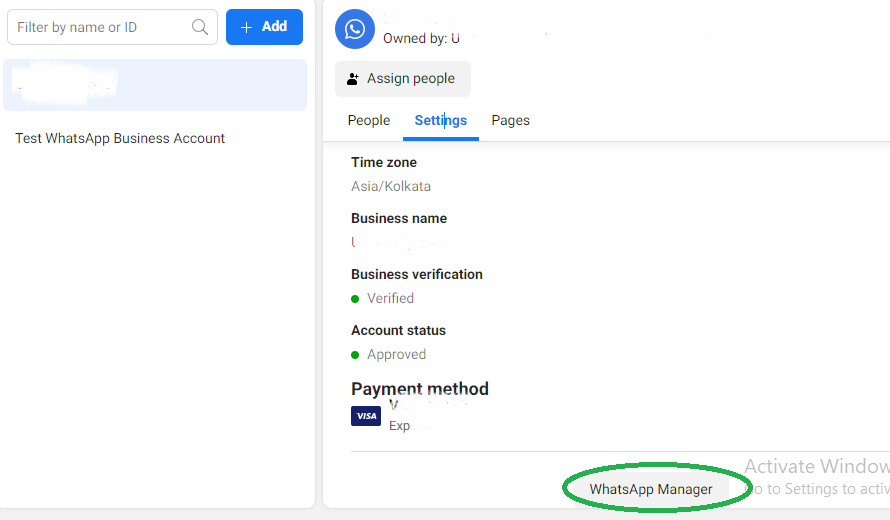
- Click on the Settings tab and choose WhatsApp Manager by scrolling below.
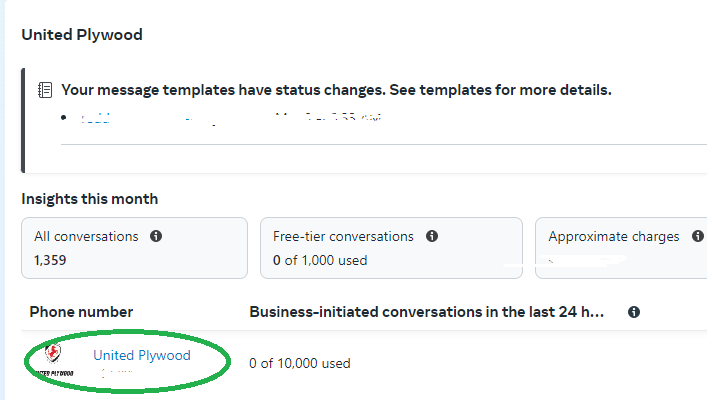
- Click on the blue Hyperlink of your WhatsApp display name.
- Hover your mouse on the left hand side a pop up menu will open up.
- Choose the option Catalog which comes under the Account Tools section.
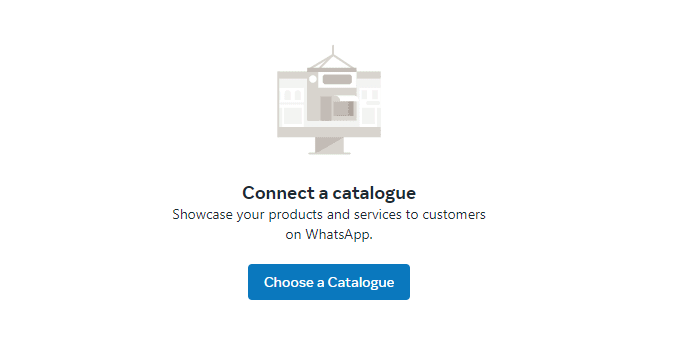
- Now click on Choose catalog and select your catalog from the dropdown menu.
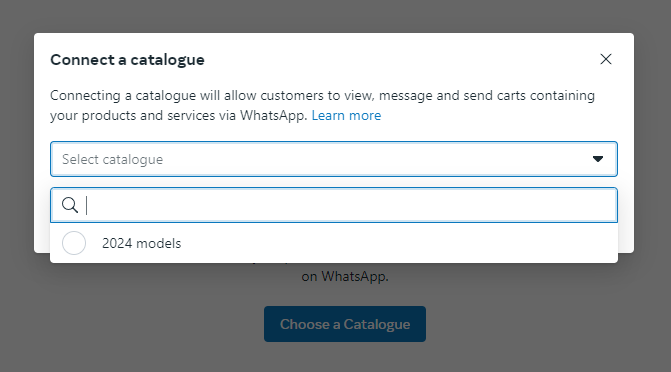
- Then click on Connect Catalog.
Once it is done, then log in to your EasySocial account and then go to Settings - Go to Whatsapp
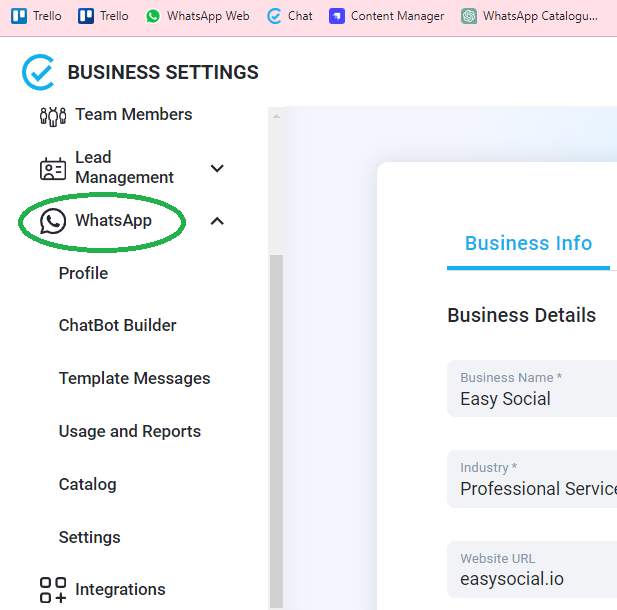
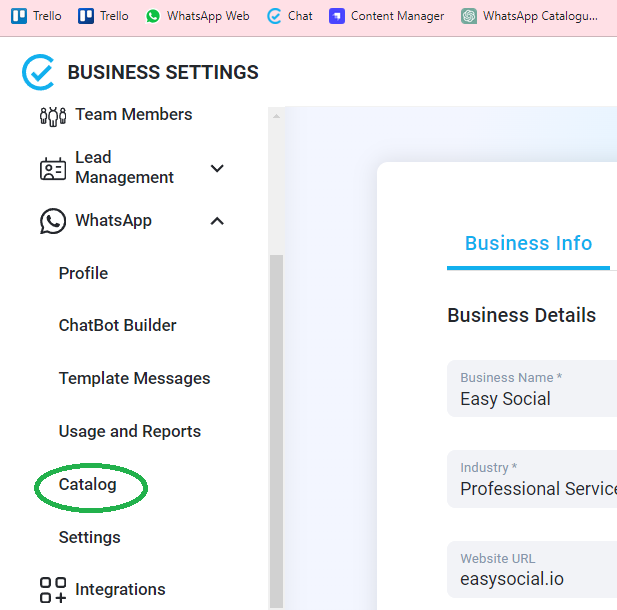
- Click on Catalog option
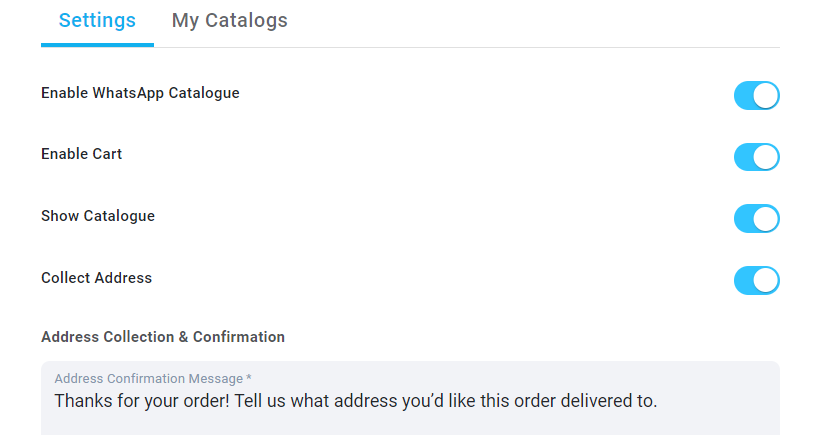
- Review and enable the options on this page and click on Save at the bottom.
- You can click on My Catalog tab and choose a catalog from the dropdown to see a list of all the items within that catalog. If you have just created the catalog you might not be able to add products instantly via this feature. You may add products after 1 hour of creating the catalog.
Your Catalog will be visible to your customers and ready to use within 1 hour. Please note that whenever you add more items to your catalog they might not update immediately, it could take upto 2-3 hours for the new items to be listed on your WhatsApp.