
Hyperpersonalization
 Hyperpersonalization lets you create a dynamic header image for a WhatsApp template, using each recipient’s information. When you broadcast the campaign, the image is personalized for each contact.
Create a campaign with a dynamic image
- Start a new campaign, enter its name, and choose the campaign type.
- In Step 2, select a WhatsApp template that has an image in its header.
- Under Header Media, choose Dynamic to personalize the image for each contact. Static uses a regular, non-personalized header image.
- Select an existing creative from the dropdown, or choose + New to create one.
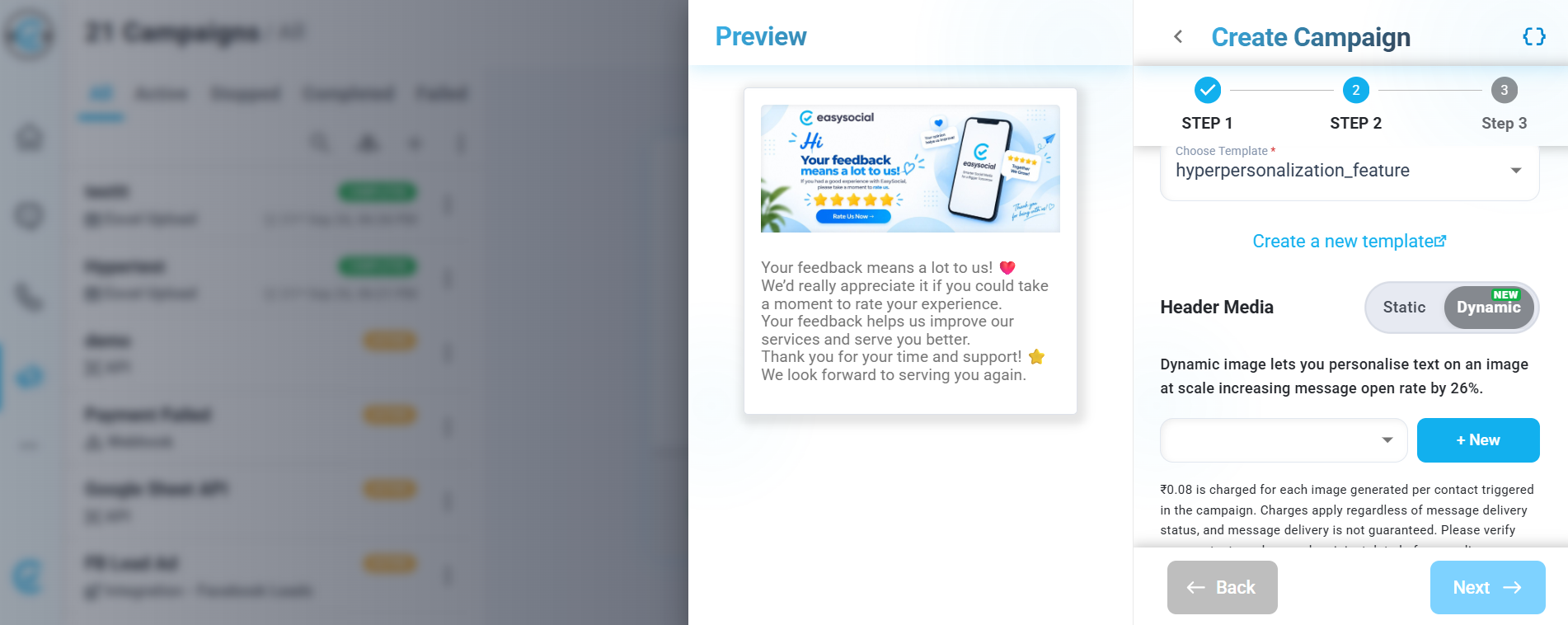
Create a new creative
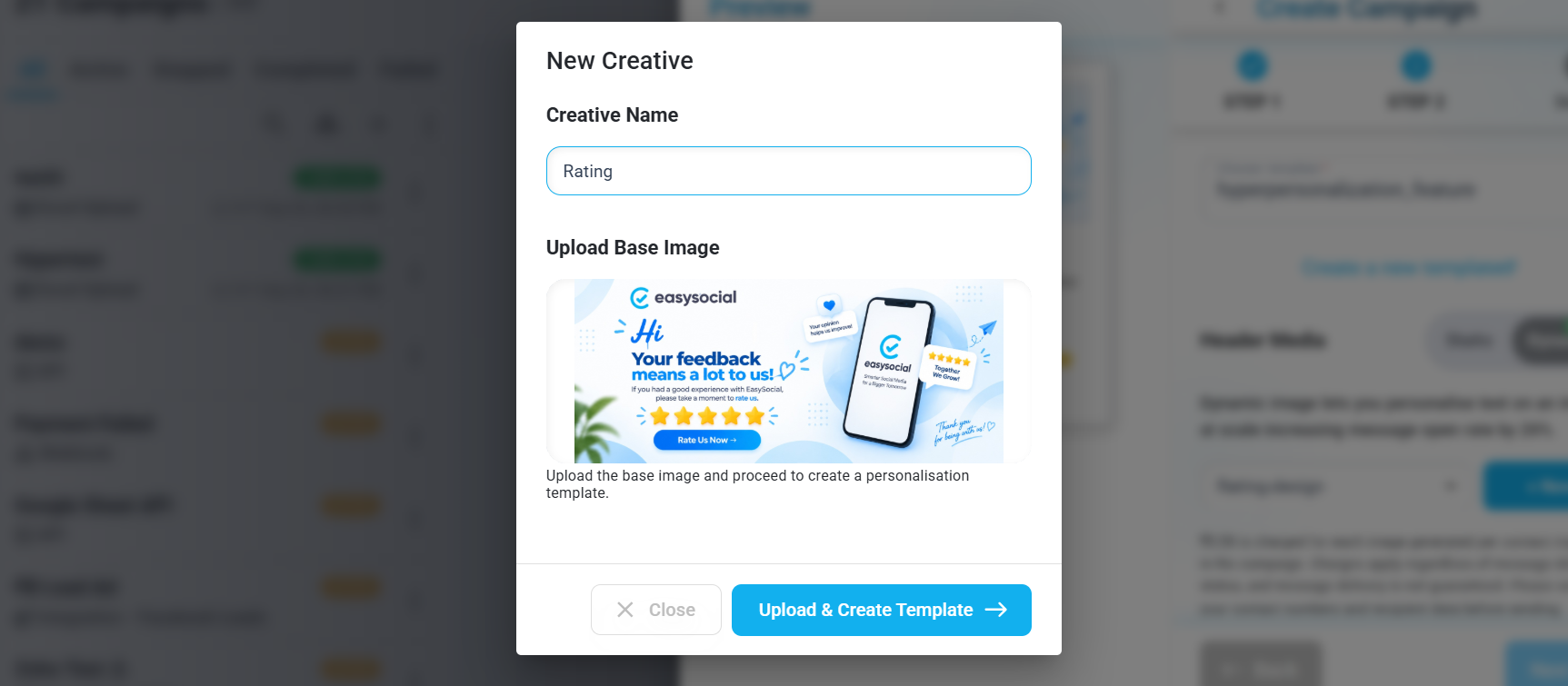
Choose + New, enter a creative name, and drag the base image into the upload area. Select Upload & Create Template to open the image editor.
Personalize the image
In the editor, add the recipient field to the image—for example, Name, Full Name, Address, Email, or Phone. Position the text as needed and choose the available font style, size, color, and other design options.
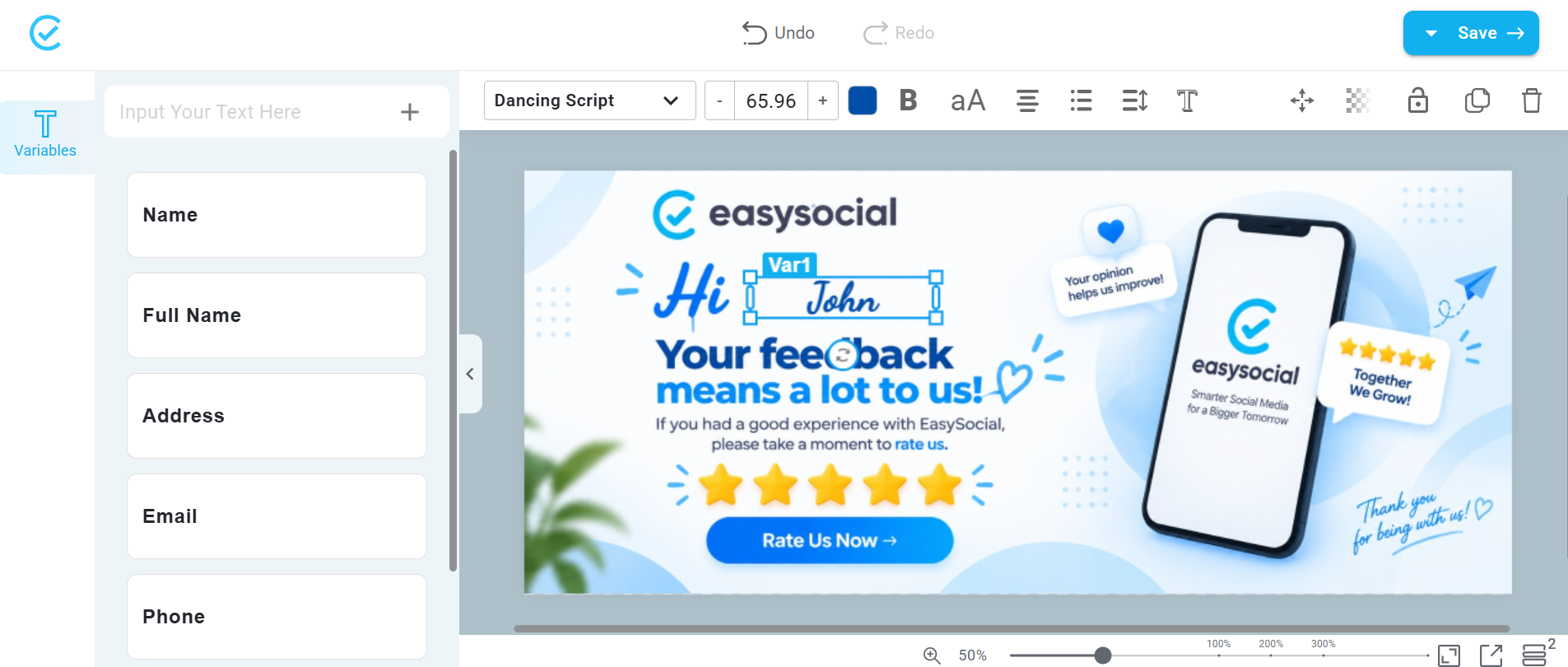
Save the creative and continue through the remaining campaign steps to review and broadcast the message. Each contact receives an image personalized with the corresponding information. Check that the recipient data needed by the creative is available and correct before broadcasting.
For reliable personalization, check that the recipient data needed by the creative is available and correct before broadcasting. Each contact receives the image customized with the corresponding information.
Image-generation charge
₹0.08 is charged per image generated for each contact triggered for Indian businesses, while $0.002 is charged per image generated for each contact triggered for international businesses. The charge applies even if the message is not delivered, and message delivery is not guaranteed. Review the contact count and recipient data before sending.