
Memory Usage
Use Memory Usage to monitor workspace storage, understand which media categories consume space, and request deletion of stored media when cleanup is needed. Values shown in screenshots and examples are illustrative.
Read the totals before deleting anything. Review the category and file-type breakdowns first, because deleting media can affect chatbot assets, templates, or customer conversations that still rely on those files.
Storage summary
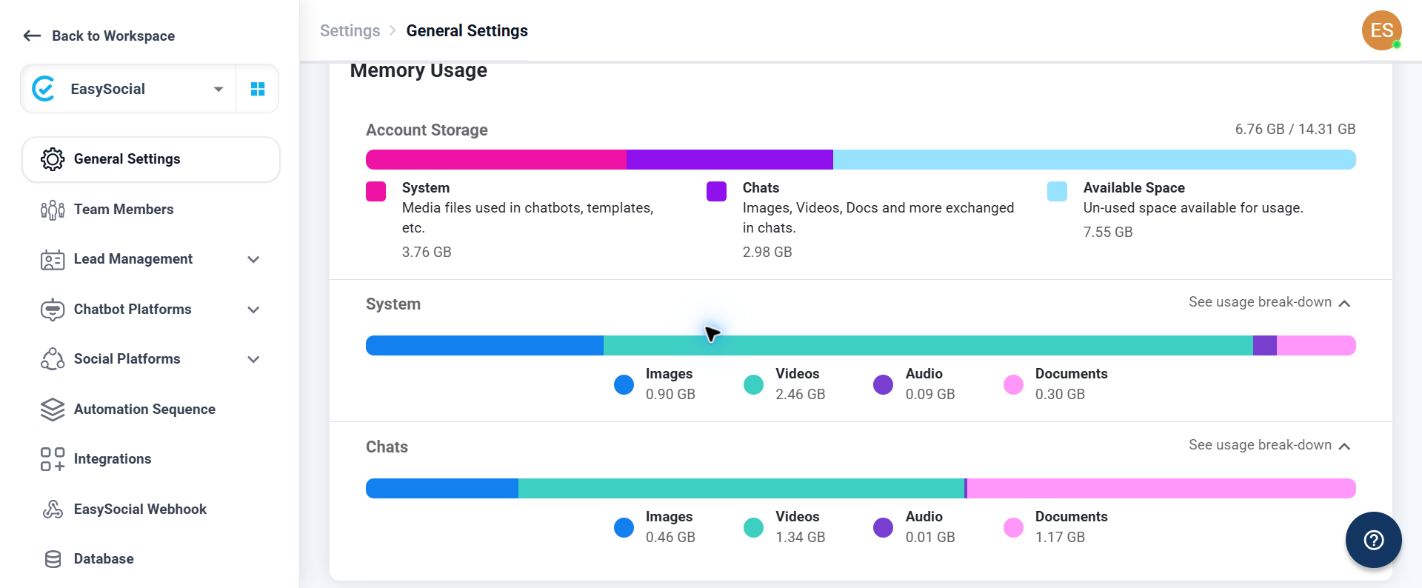
The page presents three summary cards:
| Summary | Meaning |
|---|---|
| Account Storage | Shows storage used compared with the workspace capacity. |
| System | Storage used by media files in chatbots, templates, and other system-managed resources. |
| Chats | Storage used by images, videos, documents, audio, and other media exchanged in chats. |
| Available Space | Unused capacity remaining for future storage. |
How the calculation works: Account Storage used is the combined total of the System and Chats categories. Available Space is the capacity remaining after used storage is subtracted from the account capacity.
For example, if a workspace shows 3.76 GB in System and 2.98 GB in Chats, the used total is 6.74 GB by simple addition; the platform’s displayed total may be rounded independently, so a screen can show a small rounding difference. Treat the values shown by EasySocial as the authoritative totals.
Data retention: EasySocial provides 90 days of data retention by default. This may vary by plan; when a different period is not specified, use 90 days as the default.
Storage limit instruction: When System uses all available storage, chats will not be delivered. Keep available space so new chat activity can continue.
System storage
What it includes: System is labeled as media files used in chatbots, templates, and similar system-managed areas. This is where reusable business assets are monitored rather than media exchanged in a customer chat.
Chatbot data: Images, videos, audio, documents, and other media uploaded for chatbot messages, flows, or responses can consume System storage. Reusing the same asset is preferable to uploading unnecessary duplicates.
Templates: Media attached to message templates or reusable content can consume System storage. Review older or duplicate template assets when the System total grows.
Other stored resources: The visible label uses “etc.”, so System should be treated as the category for other platform-managed media that is not counted as a chat exchange. The page does not expose a separate per-feature list.
System file-type breakdown
Select See usage break-down under System to expand the file-type totals. The available rows are:
- Images: Stored image files used by system resources.
- Videos: Stored video files used by system resources.
- Audio: Stored audio files used by system resources.
- Documents: Stored document files used by system resources.
Chats storage
What it includes: Chats covers images, videos, documents, audio, and other media exchanged in customer conversations. A file can consume chat storage even when it was originally uploaded by a customer or sent by the business.
Why it grows: High-volume conversations, media-heavy support, and repeated document sharing can increase the Chats total. Deleting a chat media file may affect the ability to review or reference that conversation.
Chats file-type breakdown
Select See usage break-down under Chats to expand the chat media totals:
- Images
- Videos
- Audio
- Documents
Use the largest category as the starting point for cleanup. For example, if Documents is the largest Chats category, review document-heavy conversations before removing anything.
Delete Files
Select Delete Files to open the media cleanup dialog. The dialog asks what should be deleted before enabling the next step. Selected files are deleted within 24 to 48 hours.
Request Type
Choose the scope of chat media to target:
- Media files in all Chat: Targets media across all chats.
- Media files in Sent: Targets media sent by the business or workspace.
- Media files in Received: Targets media received from customers or contacts.
Media Type
Choose the file category to target:
- All file types: Includes every supported media category in the selected request scope.
- Image types: Targets images only.
- Video types: Targets videos only.
- Audio types: Targets audio only.
- Others: Targets other supported file types, such as documents.
The Next button remains disabled until the required selections are made. Use Cancel to close the dialog without continuing.
Deletion warning. Treat deletion as a potentially irreversible cleanup action. Confirm the request scope and media type carefully, and make sure no chatbot, template, support process, or audit requirement still depends on the files.
Storage management best practices
Good practice: Review Memory Usage once in a while to monitor available space, identify growing file categories, and clean up files that are no longer needed.
- Expand System and Chats to identify the largest file type.
- Remove duplicate or obsolete chatbot and template assets through their owning feature where possible.
- Review media-heavy conversations before deleting chat files.
- Use the narrowest Delete Files scope that meets the cleanup requirement.
- After cleanup, reopen Memory Usage and confirm the totals changed as expected.
Troubleshooting
Available Space seems incorrect: Check the displayed System and Chats totals and allow for rounding. The platform’s Account Storage and Available Space values are the authoritative display.
System usage is high: Expand the System breakdown, then review media in chatbots, templates, and other reusable resources. Remove unused assets from the feature that owns them before using bulk deletion.
Chats usage is high: Expand Chats and identify whether images, videos, audio, or documents dominate. Review the relevant conversations before cleanup.
Next is disabled in Delete Files: Select both a Request Type and a Media Type. If it remains disabled, close and reopen the dialog and make the selections again.