
Chatbot Settings
Use the WhatsApp tab to configure conversation reset behavior, reminders, customer messages, re-engagement, and keyword matching for your chatbot.
Chatbot Status
Turn Chatbot Status on to make the WhatsApp chatbot work. When it is turned off, the other chatbot settings are hidden and the chatbot does not respond.
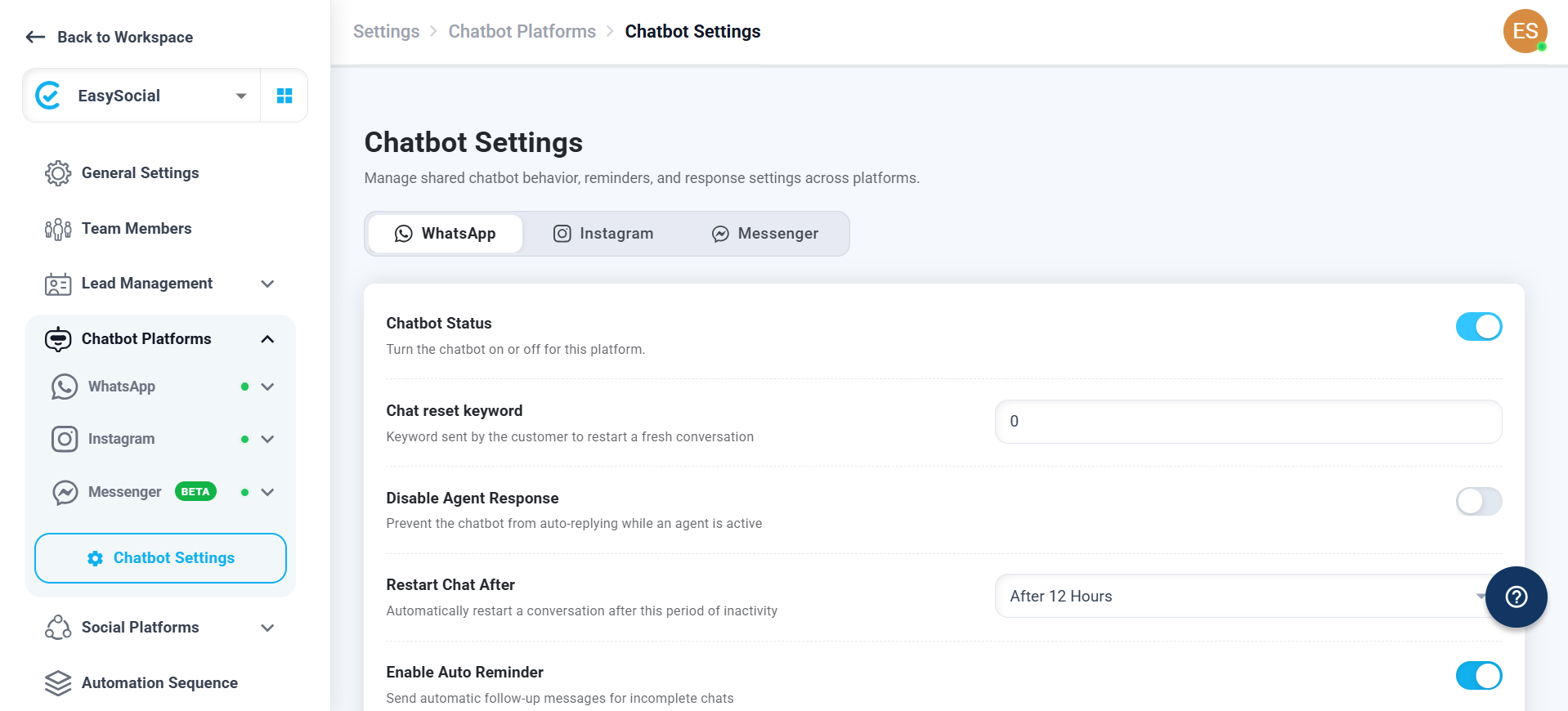
Conversation behavior
| Setting | What it controls | Available options or input |
|---|---|---|
| Chat reset keyword | The keyword a customer sends to restart a fresh conversation. | Enter a keyword in the text field. |
| Disable Agent Response | Prevents the chatbot from auto-replying while an agent is active. | Toggle on or off. |
| Restart Chat After | Automatically restarts a conversation after the selected inactivity period. | After 10 Mins, After 30 Mins, After 1 Hours, After 6 Hours, After 12 Hours, or After 24 Hours. |
| Enable Auto Reminder | Sends automatic follow-up messages for incomplete chats. | Toggle on or off. |
| Send Last Message | Controls the Send Last Message option for incomplete-chat handling. | Toggle on or off. |
Incomplete-chat response
| Setting | What it controls | Available options or input |
|---|---|---|
| Auto Respond to incomplete chat | Sets the delay used for the automatic response to an incomplete chat. | Choose the required delay from the dropdown. |
| Header | Adds media to the incomplete-chat message when enabled. | Toggle on to add an image, video, or document. Images must be uploaded in PNG or JPEG format. |
| Default Message | Message used for the incomplete-chat response. | Edit the message in the text area. |
| Language based Response | Lets you define a response for a language. | Use Add Response, then enter a language and its message. |
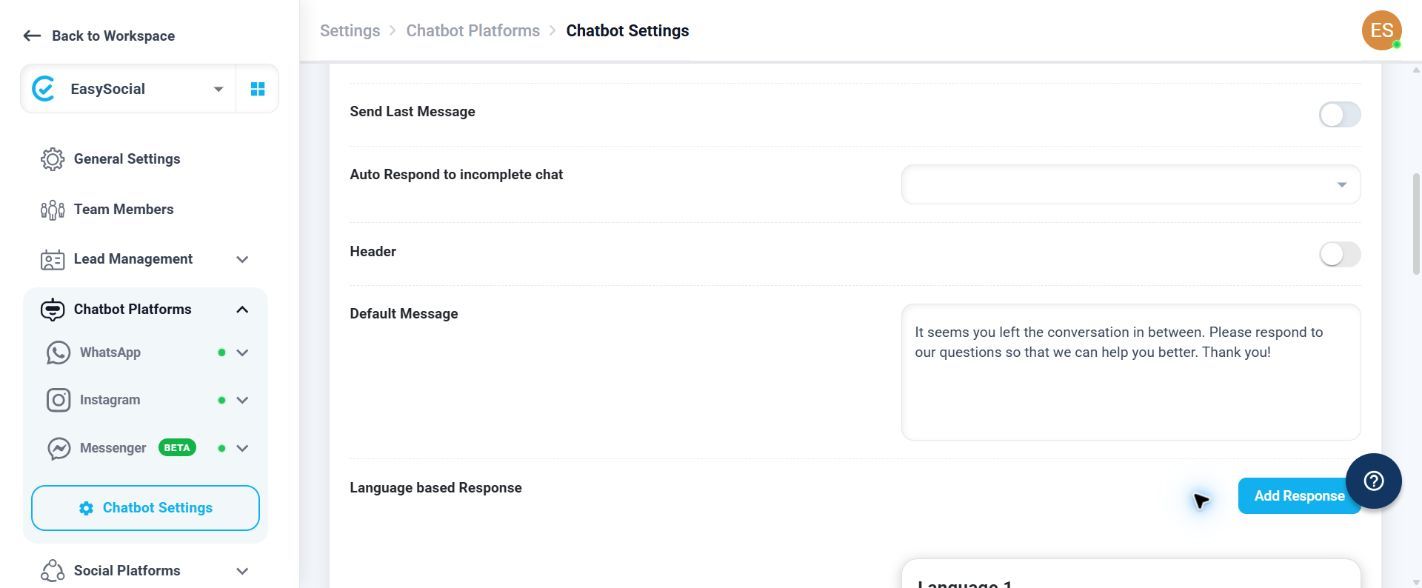
Language based Response fields
| Field or action | Use |
|---|---|
| Language | Enter the language for the response. |
| Message | Enter the message to send for that language. |
| Add Response | Add another language-based response. |
Customer and agent messages
| Setting | What it controls | Available input or action |
|---|---|---|
| Mask Contact for team members | Controls contact-number masking for team members. | Toggle on or off. |
| Disengage Message | Message used when the customer starts talking with a customer-service representative. | Toggle and edit the message. The text supports [agent], [agent_phone], and [agent_email]. Use Reset to restore the default. |
| Engage Message | Message used when the representative session ends. | Toggle and edit the message. The text supports [agent], [agent_phone], and [agent_email]. Use Reset to restore the default. |
| Opt-out Message | Message sent when a customer opts out of promotional messages. | Toggle and edit the message. Use Reset to restore the default. |
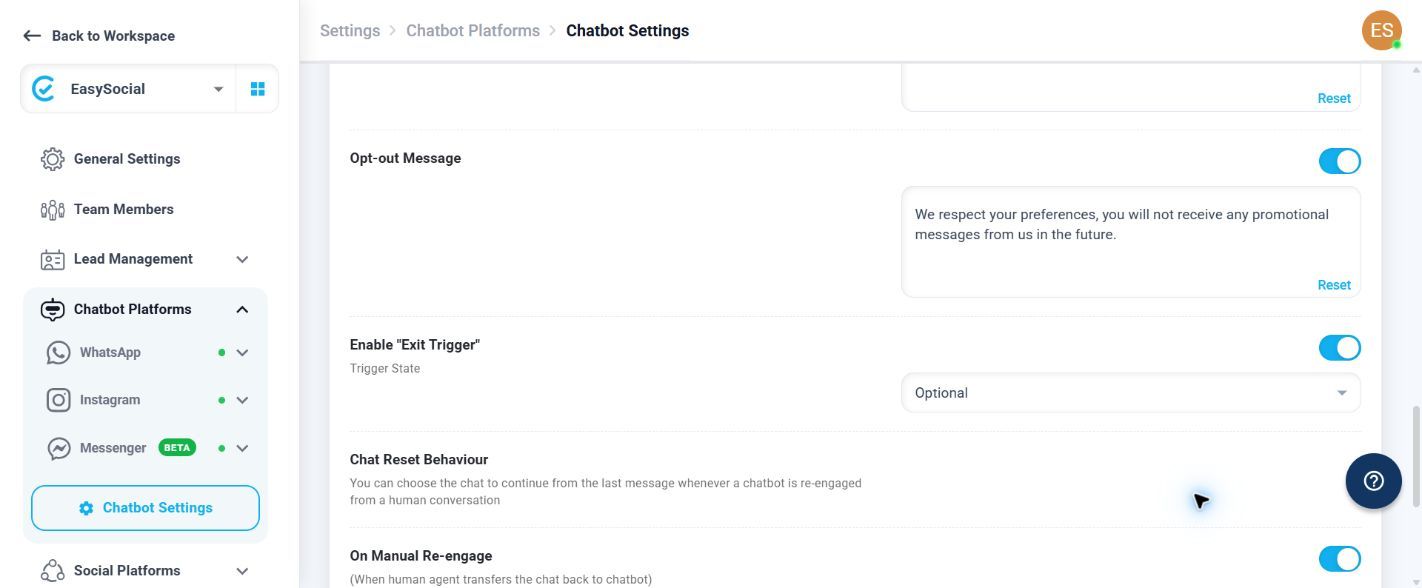
Exit Trigger
| Setting | What it controls | Available options |
|---|---|---|
| Enable “Exit Trigger” | Controls whether the exit trigger is enabled. | Toggle on or off. |
| Trigger State | Sets how the exit trigger is treated. | Compulsory or Optional. |
Chat Reset Behaviour
This section controls whether the chatbot continues from the last message when it is re-engaged after a human conversation.
| Setting | What it controls |
|---|---|
| On Manual Re-engage | Continues from the last message when a human agent transfers the chat back to the chatbot. |
| On Auto Re-engage | Continues from the last message when the session resets automatically after the preset duration. |
Global Keyword Mapping
By default, keywords work only in the active chatbot. Enable the Global toggle to allow the keyword to trigger the chatbot flow even when that chatbot is not active.
If you need guidance on setting up keyword navigation, refer to Chatbot Navigation by Keyword.
Chatbot Message Limit
Use Chatbot Message Limit to control the maximum number of messages the chatbot can send during a single customer session.
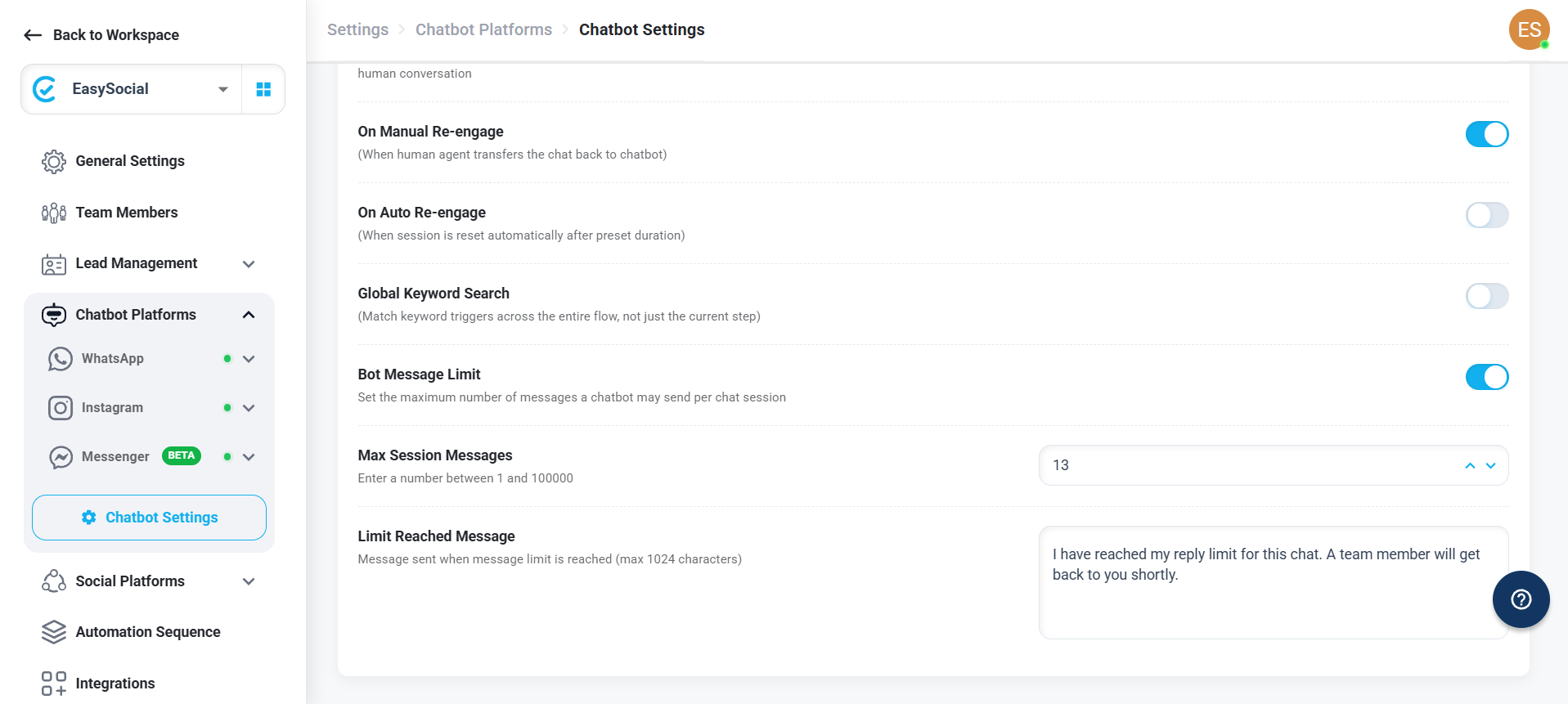
| Setting | What it controls | Available input or action |
|---|---|---|
| Bot Message Limit | Limits the number of messages the chatbot can send in a session. | Toggle on or off. |
| Maximum Session Messages | Defines the maximum number of messages the chatbot can send during a session. | Enter the maximum number of messages allowed. |
| Limit Reached Message | Defines the message shown to the customer when the chatbot reaches the configured message limit. | Enter or edit the message in the text field. |
Once the configured maximum is reached, the chatbot stops sending further responses and displays the Limit Reached Message to the customer.
Review all toggle states, message text, timing values, and trigger options before saving. If a setting does not behave as expected, contact EasySocial Support.