
Lead Distribution Rules
Use Lead Distribution Rules to decide who should receive a lead when a particular event occurs. You can route every incoming lead to selected people or match a lead’s saved information to a value before assigning it.
Lead Distribution Rules list
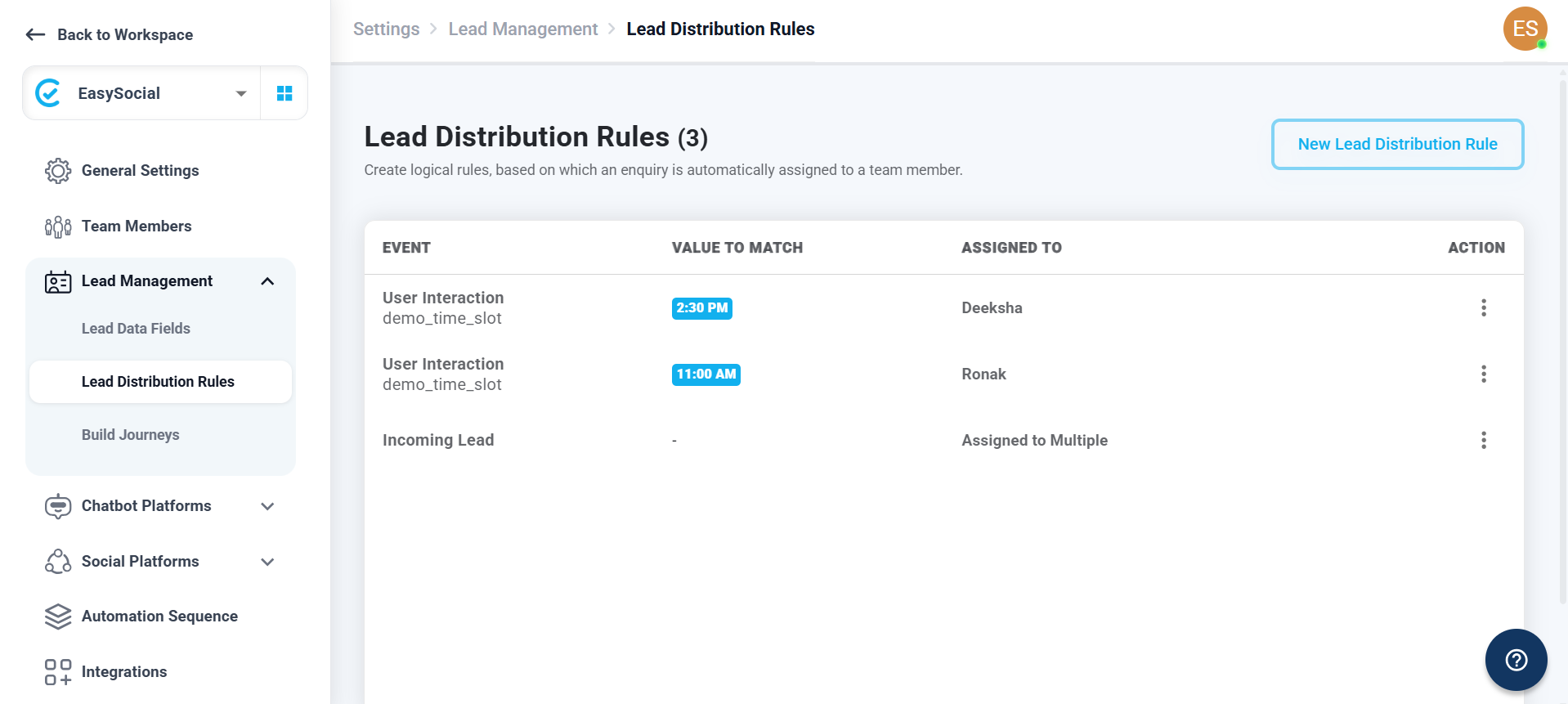
The list shows each rule’s event, the value it checks, the selected assignee or assignees, and the available row action. Select New Lead Distribution Rule to create another rule.
Create a new rule
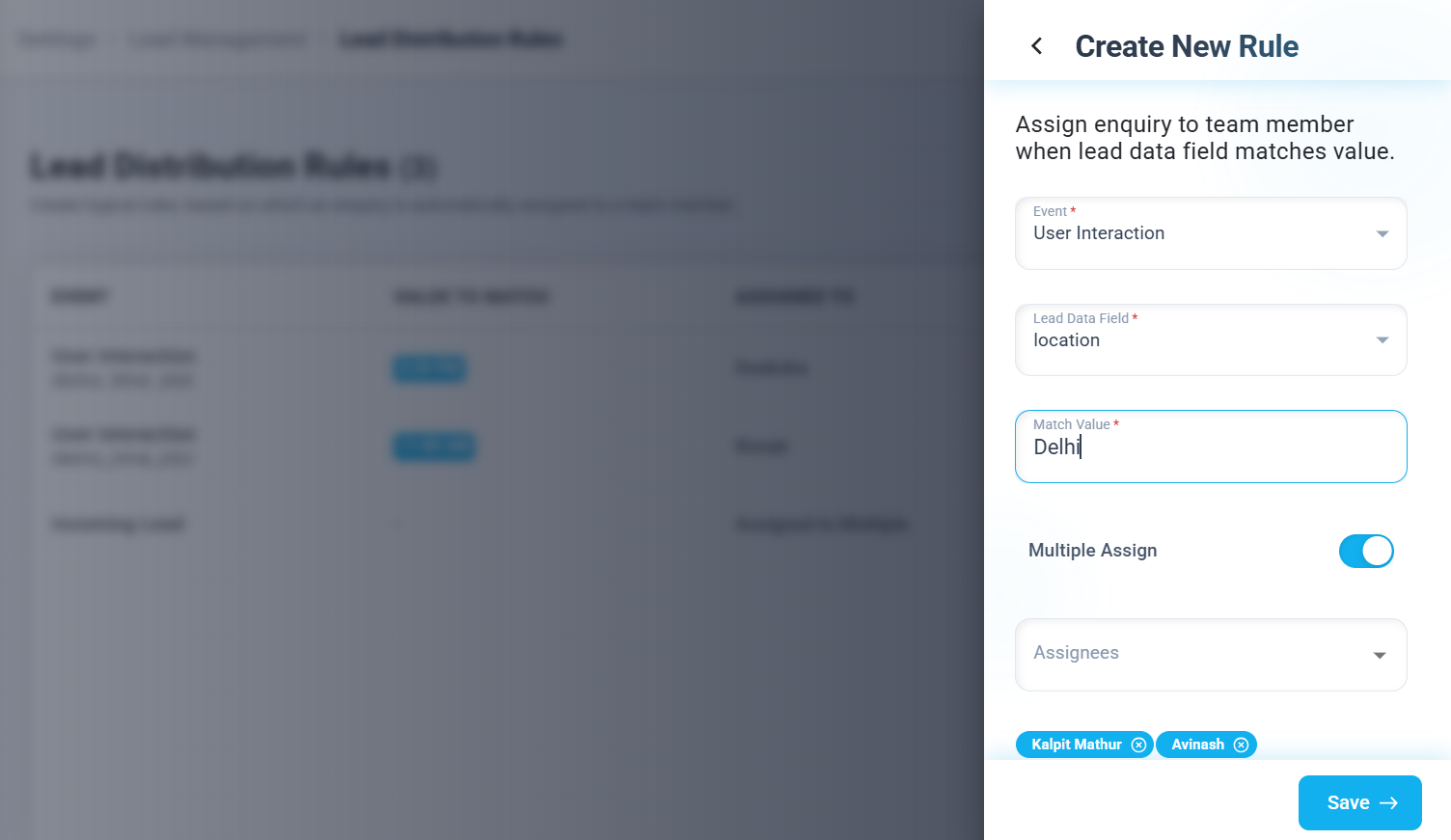
Choose the event that should trigger the rule, select the people who should receive the matching leads, and save the rule. The fields marked with an asterisk in the form must be completed.
Event
Choose one of the two available events:
| Event | When to use it |
|---|---|
| User Interaction | Use this when assignment depends on a value submitted or selected by the customer. Selecting it displays the Lead Data Field and Match Value fields. |
| Incoming Lead | Use this to assign any new incoming lead to the selected person or people. This event can be used only once; after an Incoming Lead rule has been created, the option is disabled when another rule is created. |
Lead Data Field
For a User Interaction rule, select the lead data field that should be checked. The dropdown contains the lead data fields available in your account.
Match Value
Enter the value that must match the customer’s response. When the value saved in the selected lead data field matches this entry, the lead is assigned to the selected assignee or assignees.
For example, create one rule where the Lead Data Field is Location and the Match Value is Delhi, then assign it to one team member. Create another rule with the same field and a Match Value of Jaipur, then assign it to another team member. Leads from customers who select or submit Delhi or Jaipur are routed according to the matching rule.
Multiple Assign
Leave this toggle off when the matching lead should be assigned to one person. Turn it on when the lead should be assigned to more than one person, then select the required people from Assignees.
Assignment result
When a rule’s event and value match the lead, the lead is assigned to the person selected in the assignee field. If Multiple Assign is enabled, it is assigned to all selected assignees. Review the rule list to confirm the event, value, and assignment before relying on the rule.
Use distinct match values when creating multiple User Interaction rules so each customer response is routed as intended.