
Business Info
Use this guide when completing Business Info. It explains what to enter in each section and provides examples where they make the fields easier to understand.
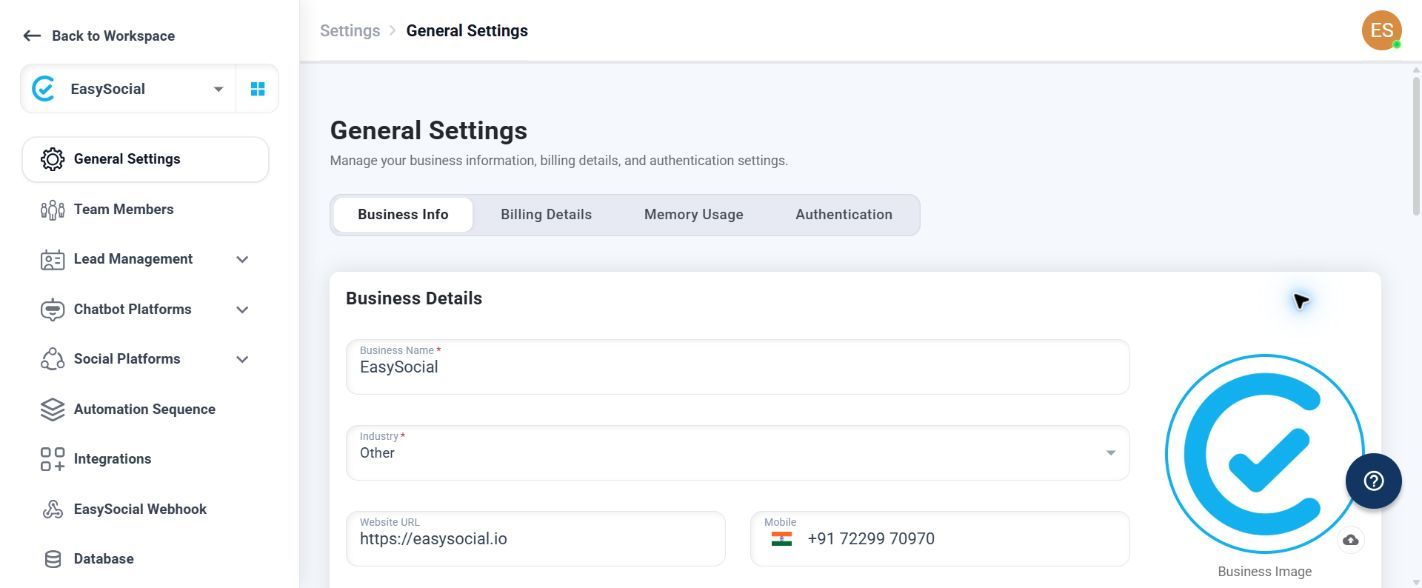
Business details
| Field | What to enter |
|---|---|
| Business Name | Enter the name you want to use in EasySocial. Example: Example Retail Store. |
| Industry | Choose the closest available industry. Selecting Other displays an additional text field. |
| Website URL | Enter the business website address. Example: https://www.example.com. |
| Mobile | Select the appropriate country code and enter the mobile number. You can change the country code. |
| Upload Business Image | Upload the image you want to use for the business profile. |
| About Business | Enter concise business information that can be used by native AI features. |
Industry
Select the closest available option. Use Other when none of the listed categories applies, then complete the text field that appears.
| Options shown |
|---|
| Automotive; Beauty, Spa and Salon; Clothing and Apparel; Education; Entertainment; Event Planning and Service; Finance and Banking; Food and Grocery; Public Service; Hotel and Lodging; Medical and Health; Non-profit; Professional Services; Shopping and Retail; Travel and Transportation; Restaurant; Other. |
About Business
Write a short description that explains what the business offers. Example: Online store offering home and lifestyle products.
Business Address
| Field | What to enter or select |
|---|---|
| Address | Enter the business address. |
| Country | Select the country. |
| State | Select the state. |
| City | Enter the city name. |
| Pincode | Enter the postal or ZIP code. |
Select Country before State so the state list matches the selected country. Enter the city and pincode using the address details for that location.
Location
Use Search Location to find the relevant place, then use the Open control to view the selected location. For example, search for the city or area where the business operates.
Timezone
Select the timezone that matches the location where the team works. For example, a team working in India can select Asia/Kolkata.
| Area affected | Effect of the selected timezone |
|---|---|
| Working hours | Working-hours schedules follow the selected timezone. |
| Customer chats | Chat times and availability are interpreted using the selected local time. |
| Scheduled campaigns | Scheduled send times follow the selected timezone. |
| Automations | Delays, follow-ups, and recurring actions use the selected timezone. |
| Other time-based activity | Reminders, logs, and date filters can follow the selected timezone. |
Check the timezone before scheduling campaigns or automations. If an activity runs at the wrong time, verify this setting first.
Business Language
Select the language you want the AI to use when translating and responding to customer conversations. For example, select Hindi when customer replies should be written in Hindi.
| Options shown |
|---|
| English (Global); Arabic (العربية); Bengali (বাংলা); French (Français); German (Deutsch); Gujarati (ગુજરાતી); Hindi (हिंदी); Indonesia (Bahasa); Italian (Italiano); Japanese (日本語); Korean (한국어); Mandarin Chinese (普通话); Portuguese (Português); Russian (Русский); Tamil (தமிழ்); Telugu (తెలుగు). |
Complete the page
Use the field guidance above to complete your profile, review the information for accuracy, and save the form. If EasySocial shows an error, correct the related field and try again. If the issue continues, contact EasySocial Support.