
Set Team Members Availability
Manage an individual team member’s working availability.
Availability
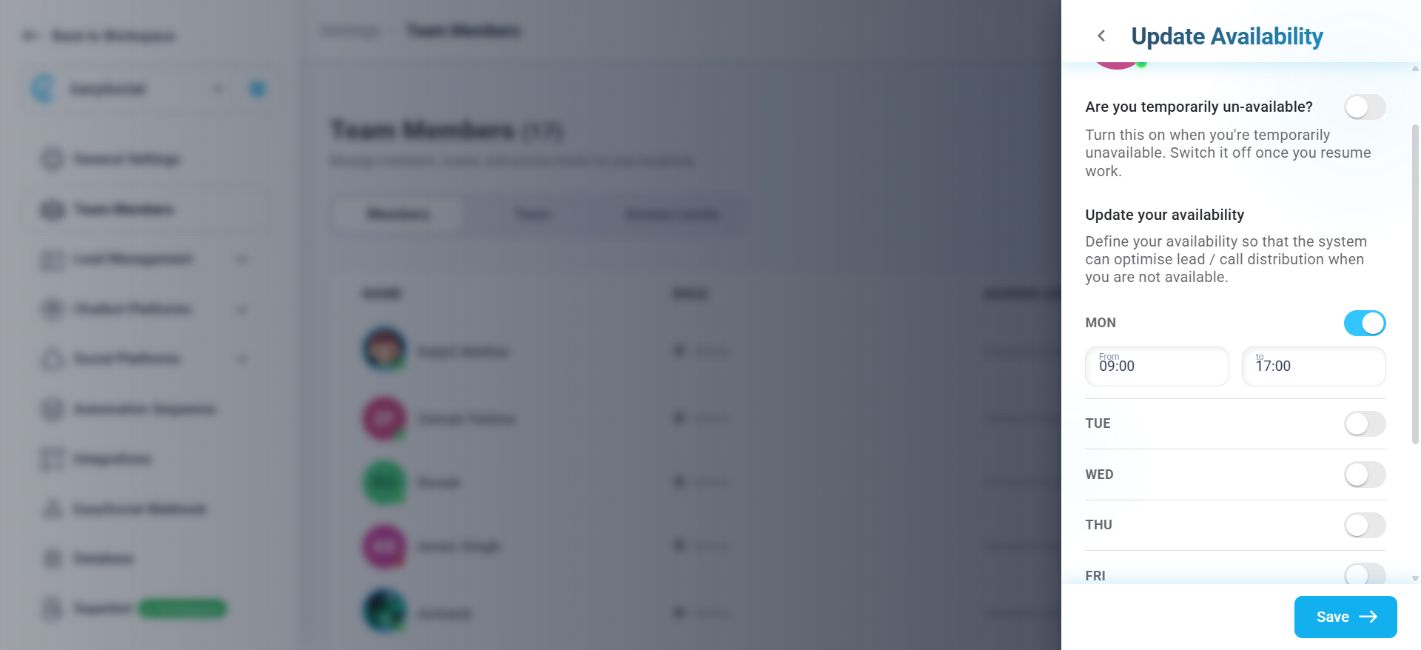
Availability is configured separately for each team member. Select the member’s working days and set the hours for each day. Different members can have different schedules, including separate morning or evening shifts. EasySocial uses these schedules when assigning leads so that a new lead is not assigned to a member who is unavailable.
| Control | What it provides |
|---|---|
| Temporarily un-available? | Marks the member as temporarily unavailable. Turn it off when the member resumes work. |
| MON–SUN | Select the member’s working days. |
| From / to | Sets the working start and end time for a selected day. |
Set a member’s availability
- Open the member’s three-dot action menu and select Set Availability.
- Use the temporary-unavailable setting when the member is away temporarily.
- Select each working day, then set its From and to times.
- Save the updated availability settings.
If a member signs in on a day that is not available, EasySocial asks whether the member is available. Turning on the availability toggle makes the member eligible for lead assignment for that period.
Troubleshooting
Leads are not being assigned: Check that the correct days and times are selected and that the member is not marked temporarily unavailable.
If the issue continues, contact EasySocial Support.