
Team Members
The Members tab is the place to invite people to the business, check their roles, and manage their membership.
Members tab
Each row shows the member's Name, Role, Access Levels, and Action menu.
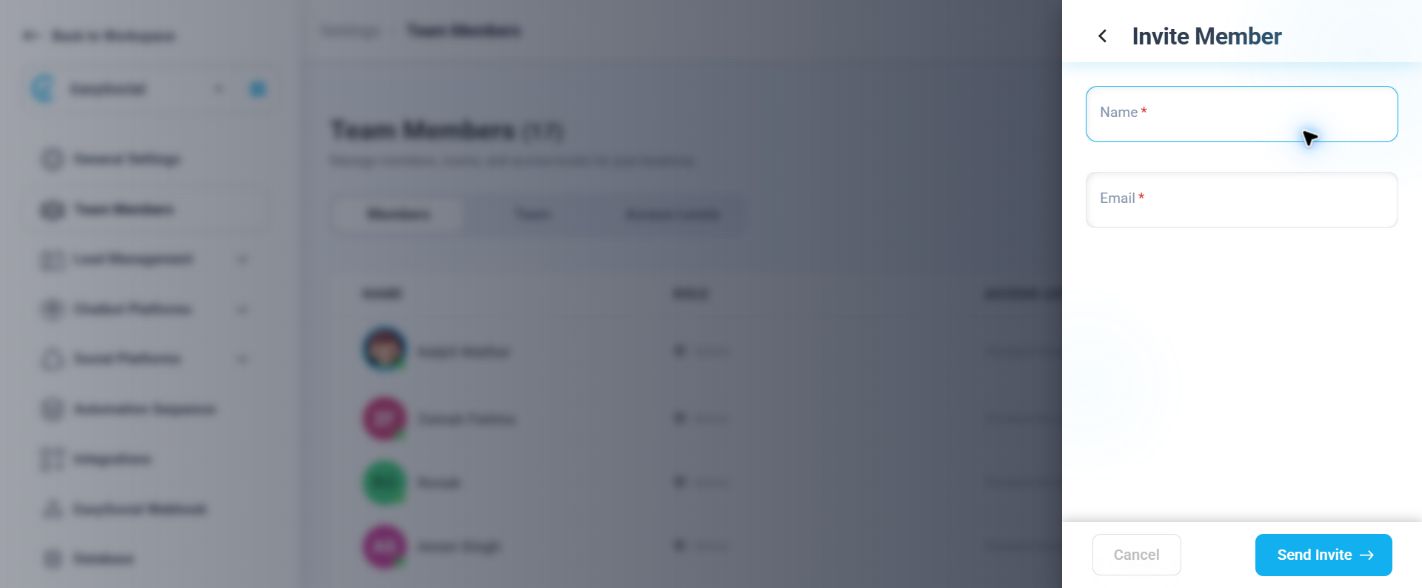
- Open Settings → Team Members.
- Select Invite Member.
- Enter the required Name and Email.
- Select Send Invite.
The Owner can send invitations for multiple members. The invitee must have an EasySocial account before accepting the invitation. If another EasySocial account is already signed in, log out first, then accept the invitation with the intended account.
Member roles
| Role | Lead access | Business account |
|---|---|---|
| Owner | Business owner access. | Can manage the business account, including wallet recharge and account renewal. |
| Admin | Can access all leads and Settings. | Can use the business features available for the role. |
| Team Member | Can access only leads assigned to them. | Can use the business features available for the role. |
The Members list may display the Team Member role as Member.
Member actions
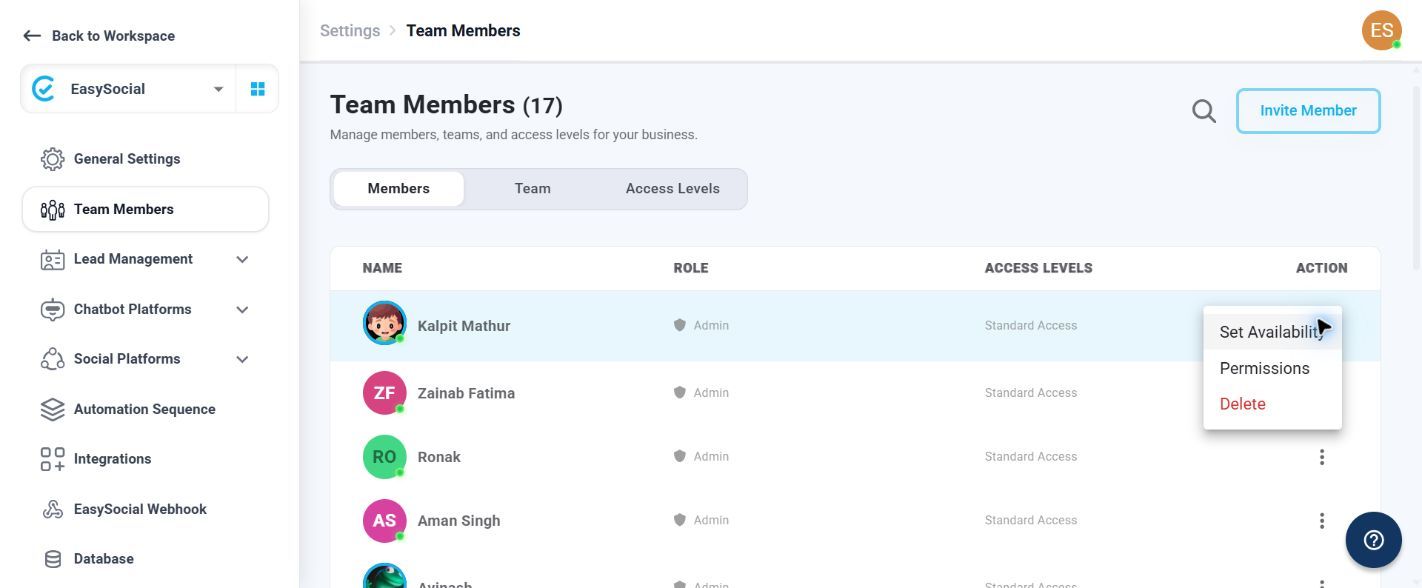
Use the member actions menu to open these options:
| Option | What it does |
|---|---|
| Set Availability | Opens the member availability controls. For details, see Set Team Members Availability. |
| Permissions | Opens the member permission controls. |
| Delete | Opens a confirmation dialog. Selecting Delete removes the member from the business; the member's EasySocial user account remains active. |
Troubleshooting
Invitation cannot be accepted: Confirm that the invitee has an EasySocial account and is signed in to the intended user. If another account is open, log out and accept the invitation again.
If the issue continues, contact EasySocial Support.