
Team
The Team tab groups members who share a role or responsibility, such as Sales or Support. A team can then be selected when an Assignment Rule should route work to that group.
Why use teams?
- Group members by role or responsibility.
- Create separate groups for functions such as Sales or Support.
- Select a team in an Assignment Rule when work should go only to that group instead of the whole organisation.
- Organise manpower by directing enquiries to the members responsible for handling them.
Team list
The tab displays three columns:
| Column | What it shows |
|---|---|
| Team | The team name. |
| Members | The number of members in the team. |
| Action | The three-dot menu for editing or deleting the team. |
Add a team
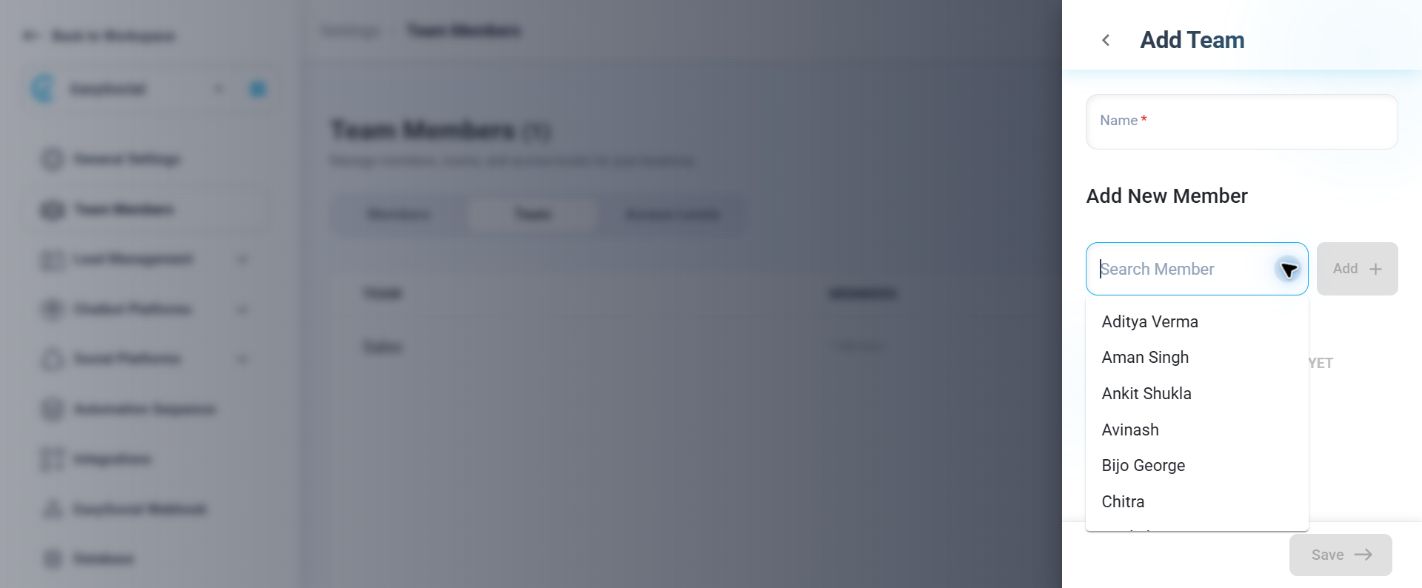
- Select Add Team.
- Enter the required team Name.
- Under Add New Member, open Search Member.
- Select a member from the list, then select Add.
- Confirm the selected members, then select Save.
Before a member is selected, the dialog shows No Member Selected Yet; the Add and Save controls are disabled.
Edit a team
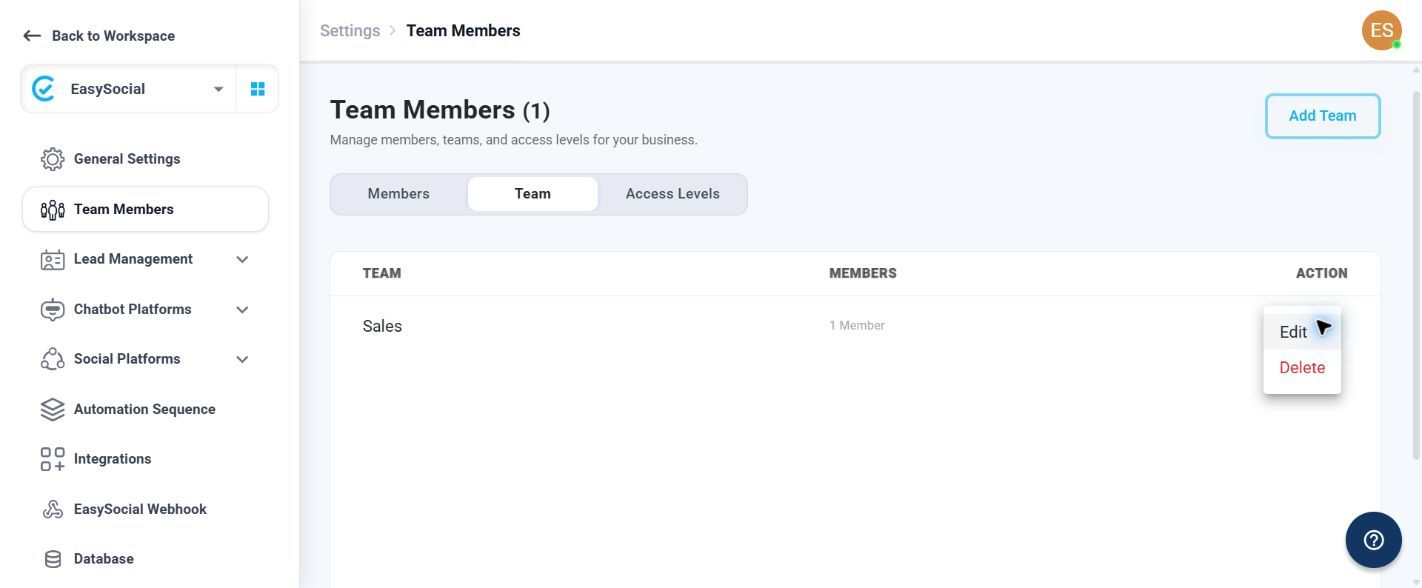
- Open the team's three-dot menu.
- Select Edit.
- Change the team Name or add members through Search Member.
- Select Update to save the changes, or Cancel to close the form.
Team actions
Open the three-dot menu in the Action column to access:
| Option | Result |
|---|---|
| Edit | Opens the Edit Team form with the team name and current members. |
| Delete | Opens a confirmation asking, “Are you sure you want to delete?” Choose Delete to remove the team or Cancel to keep it. |
Using a team in Assignment Rules
When an Assignment Rule needs to route a new enquiry to a specific function, select the relevant team instead of assigning the enquiry to the entire organisation. For example, select the Sales team when the enquiry should be handled by Sales members.
Troubleshooting
Add or Save is unavailable: Enter a team name and select at least one member.
A member is missing from Search Member: Confirm that the person has already been added as a business member, then reopen the selector. If the issue continues, contact EasySocial Support.
A team should not be removed: Select Cancel in the delete confirmation. Delete only when the team is no longer required.