
Access Level
Access Levels let a business control which pages, features, and functions a user can access in EasySocial. Create a custom level for the permissions required by a particular user or role.
Plan availability: Access Levels are available only on plans that include the feature.
Access Level list
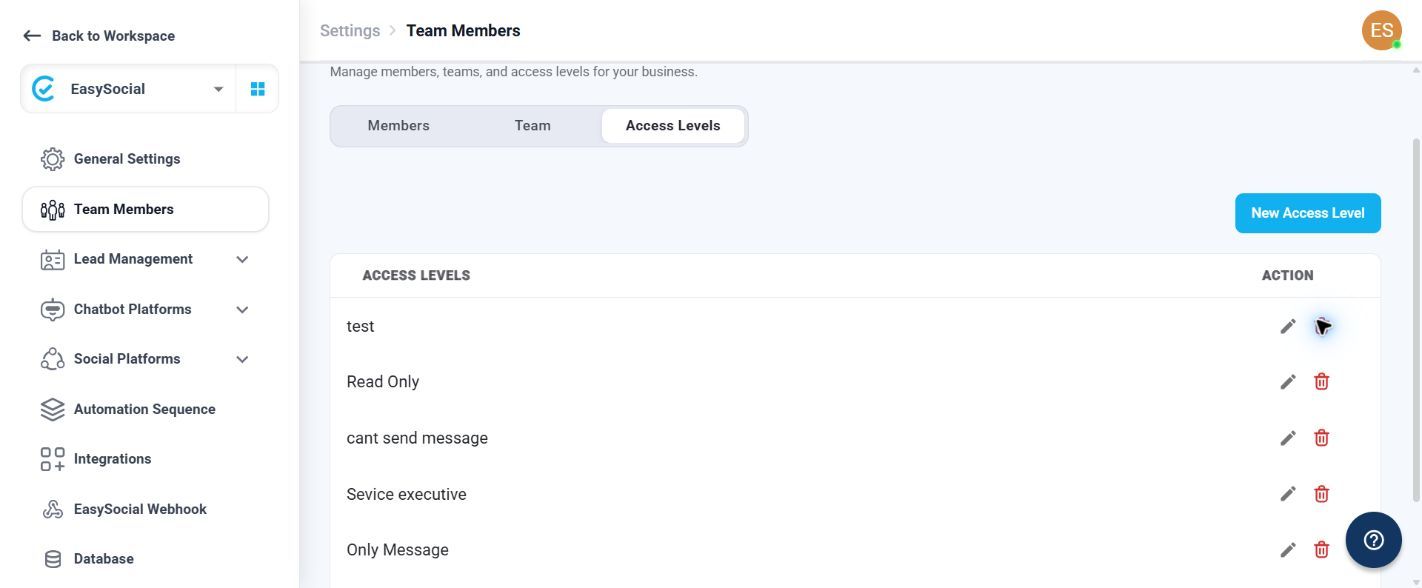
The page lists configured access levels and provides an Action column for each level.
| Page element | Available action |
|---|---|
| New Access Level | Opens the form for creating a custom access level. |
| Edit action | Opens an existing access level so its name, role, and selected permissions can be reviewed or changed. |
| Delete action | Opens a confirmation dialog before the access level is deleted. |
Create an access level
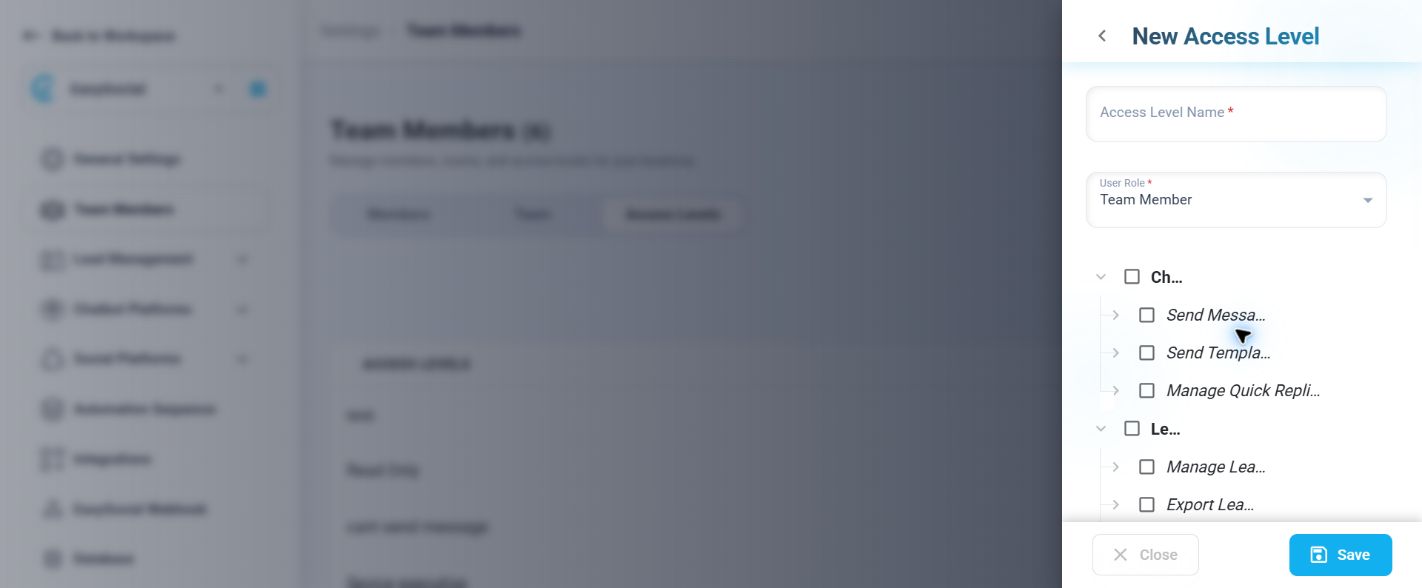
- Select New Access Level.
- Enter the required Access Level Name.
- Select the required User Role.
- Use the visible checkboxes to enable or disable the required pages and features.
- Select Save to create the access level, or Close to exit without saving.
Required fields and role options
| Field | Available values |
|---|---|
| Access Level Name | Required text field for the custom level name. |
| User Role | Required selector with the visible options Admin and Team Member. The placeholder is Select User Role. |
| Permission checkboxes | Use a tick to enable a listed permission and clear it to disable that permission. |
Edit or delete an access level
Use the edit action to reopen the access-level form and update the name, role, or selected checkboxes. Use the delete action to open the confirmation message: Are you sure you want to delete this Access Level? Select Delete to confirm or Cancel to keep it.
Using access levels
Use a custom level when a user needs access to some EasySocial areas but not others. For example, one level can allow Chats while leaving Broadcast unchecked, or restrict selected settings and features according to the user's responsibilities.
Troubleshooting
Save is unavailable: Enter an Access Level Name and select a User Role.
A feature is unavailable to a user: Review the assigned access level and confirm that the relevant checkbox is enabled.
The feature is not available on the account: Confirm that the current plan includes Access Levels.